
27 Nov The RedGIFs App: How to Add It to Your Home Screen
Posted
in RedGIFs News
Your favorite content is just a tap away. Add the RedGIFs app to your home screen for quick access to RedGIFs on your phone, whether you’re discovering new creators or catching up with the ones you already follow.
Here’s how to get set up on iPhone and Android, plus what to expect once you’ve added the app.
WHAT IS THE REDGIFS APP?
The RedGIFs app brings RedGIFs to your home screen with an experience designed for mobile browsing. You add it directly from redgifs.com/app, rather than downloading it from the App Store or Google Play.
It’s a web app, which means it uses web technology while giving you a dedicated icon on your phone. Once you’ve added it, tap the RedGIFs icon to open the app and start browsing.
HOW TO ADD THE REDGIFS APP ON IPHONE
- Open Safari and visit redgifs.com/app.
- Open the Share menu. Depending on your Safari layout, you may need to open the More menu first.
- Select Add to Home Screen. You may need to scroll through the available actions to find it.
- If you see an Open as Web App option, make sure it’s turned on.
- Tap Add.
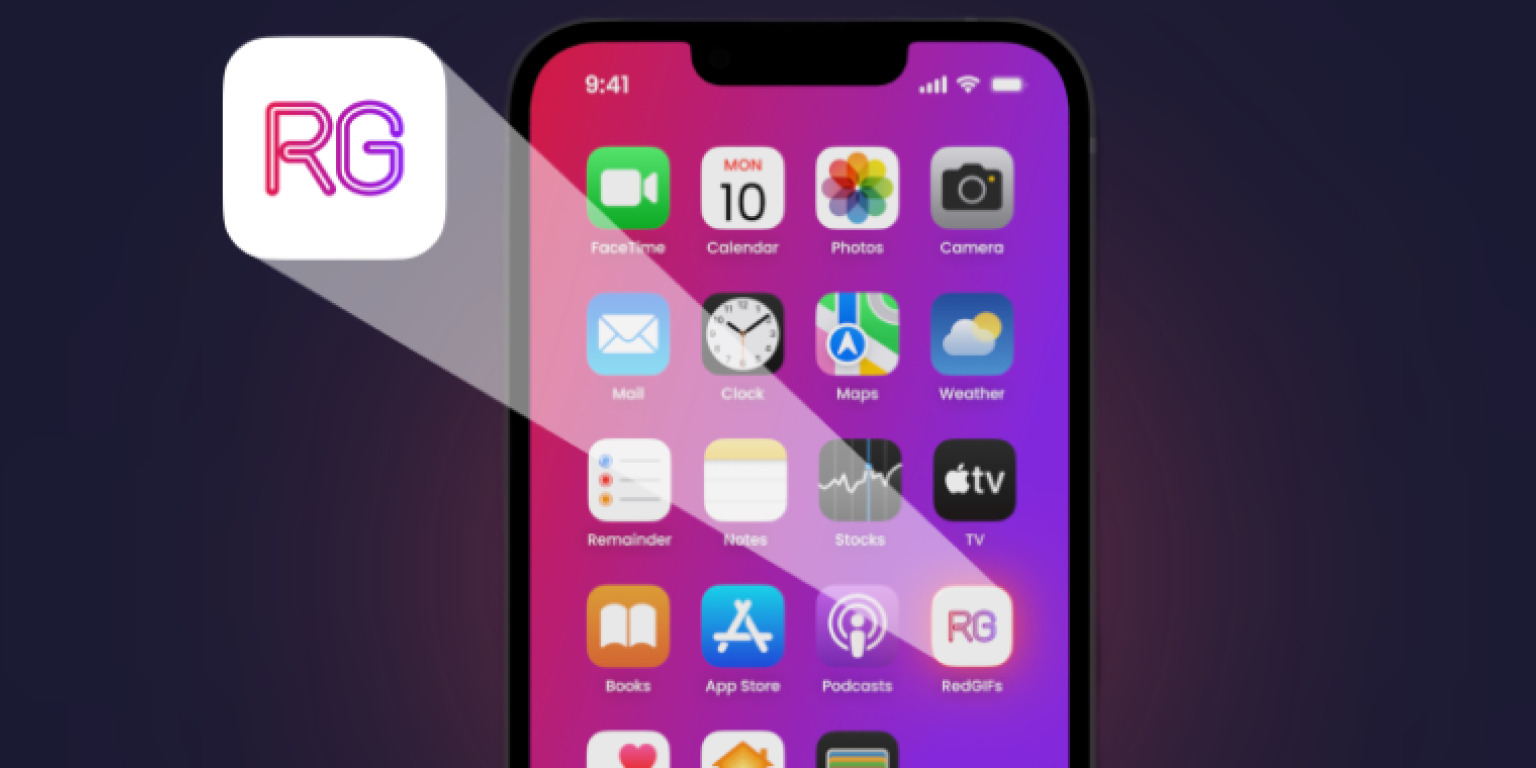
You’ll now see the RedGIFs icon on your home screen. Tap it whenever you want to open the app.
HOW TO ADD THE REDGIFS APP ON ANDROID
- Open Chrome and visit redgifs.com/app.
- Tap the three-dot menu next to the address bar.
- Select Install and create shortcut, then Install. Depending on your browser version, you may see Install app or Add to Home screen instead.
- Follow the on-screen instructions to finish adding the app.
You may also see an installation prompt when you visit the page. If you do, follow the on-screen instructions to add the app.
WHY ADD REDGIFS TO YOUR HOME SCREEN?
Quick access to your favorite content. Open RedGIFs from your home screen without typing the address or finding an open browser tab.
Browsing designed for mobile. Explore content, discover creators, and visit profiles through an experience optimized for your phone.
Stay connected to the creators you follow. Sign in to your account to follow creators and keep up with their content.
For creators, the app also gives fans a convenient way to return to RedGIFs and explore more of your content. Keeping your profile up to date helps visitors find your latest uploads and the social links you’ve added.
A PLATFORM BUILT FOR ADULT CREATORS
We’re committed to giving adult creators a space to share their work and connect with an audience. The app makes that space easier to access on mobile.
As our CEO Jimmy explains:
“Adult content Creators have long been stigmatized, shadowbanned and generally made to feel unwelcome on Social Media, and that’s something we want to put right. Finally, the Adult Industry has a platform that can provide the exposure Creators seek in an inclusive and NSFW dedicated App experience.”
If you’re a creator, Studio is where you manage your uploads, profile, social links, and analytics. To learn more about accessing creator tools, visit our verification guide.
FREQUENTLY ASKED QUESTIONS
IS THE REDGIFS APP AVAILABLE ON THE APP STORE OR GOOGLE PLAY?
No. You add the app directly from redgifs.com/app using your mobile browser. Follow the iPhone or Android steps above to get started.
CAN I DOWNLOAD VIDEOS FROM THE APP?
No. Users can’t download videos from RedGIFs, including through the app. Creators can download their own uploaded content through their Studio dashboard.
DO I NEED TO BE A VERIFIED CREATOR TO USE THE APP?
No. You don’t need creator verification to browse RedGIFs through the app. Verification gives creators access to additional tools for managing their content and profile.
READY TO ADD REDGIFS TO YOUR HOME SCREEN?
Visit redgifs.com/app on your phone to get started.
Need help getting set up? Contact our support team.
Your favorite content is just a tap away. Add the RedGIFs app to your home screen for quick access to RedGIFs on your phone, whether you’re discovering new creators or catching up with the ones you already follow.
Here’s how to get set up on iPhone and Android, plus what to expect once you’ve added the app.
WHAT IS THE REDGIFS APP?
The RedGIFs app brings RedGIFs to your home screen with an experience designed for mobile browsing. You add it directly from redgifs.com/app, rather than downloading it from the App Store or Google Play.
It’s a web app, which means it uses web technology while giving you a dedicated icon on your phone. Once you’ve added it, tap the RedGIFs icon to open the app and start browsing.
HOW TO ADD THE REDGIFS APP ON IPHONE
- Open Safari and visit redgifs.com/app.
- Open the Share menu. Depending on your Safari layout, you may need to open the More menu first.
- Select Add to Home Screen. You may need to scroll through the available actions to find it.
- If you see an Open as Web App option, make sure it’s turned on.
- Tap Add.
You’ll now see the RedGIFs icon on your home screen. Tap it whenever you want to open the app.
HOW TO ADD THE REDGIFS APP ON ANDROID
- Open Chrome and visit redgifs.com/app.
- Tap the three-dot menu next to the address bar.
- Select Install and create shortcut, then Install. Depending on your browser version, you may see Install app or Add to Home screen instead.
- Follow the on-screen instructions to finish adding the app.
You may also see an installation prompt when you visit the page. If you do, follow the on-screen instructions to add the app.
WHY ADD REDGIFS TO YOUR HOME SCREEN?
Quick access to your favorite content. Open RedGIFs from your home screen without typing the address or finding an open browser tab.
Browsing designed for mobile. Explore content, discover creators, and visit profiles through an experience optimized for your phone.
Stay connected to the creators you follow. Sign in to your account to follow creators and keep up with their content.
For creators, the app also gives fans a convenient way to return to RedGIFs and explore more of your content. Keeping your profile up to date helps visitors find your latest uploads and the social links you’ve added.
A PLATFORM BUILT FOR ADULT CREATORS
We’re committed to giving adult creators a space to share their work and connect with an audience. The app makes that space easier to access on mobile.
As our CEO Jimmy explains:
“Adult content Creators have long been stigmatized, shadowbanned and generally made to feel unwelcome on Social Media, and that’s something we want to put right. Finally, the Adult Industry has a platform that can provide the exposure Creators seek in an inclusive and NSFW dedicated App experience.”
If you’re a creator, Studio is where you manage your uploads, profile, social links, and analytics. To learn more about accessing creator tools, visit our verification guide.
FREQUENTLY ASKED QUESTIONS
IS THE REDGIFS APP AVAILABLE ON THE APP STORE OR GOOGLE PLAY?
No. You add the app directly from redgifs.com/app using your mobile browser. Follow the iPhone or Android steps above to get started.
CAN I DOWNLOAD VIDEOS FROM THE APP?
No. Users can’t download videos from RedGIFs, including through the app. Creators can download their own uploaded content through their Studio dashboard.
DO I NEED TO BE A VERIFIED CREATOR TO USE THE APP?
No. You don’t need creator verification to browse RedGIFs through the app. Verification gives creators access to additional tools for managing their content and profile.
READY TO ADD REDGIFS TO YOUR HOME SCREEN?
Visit redgifs.com/app on your phone to get started.
Need help getting set up? Contact our support team.